

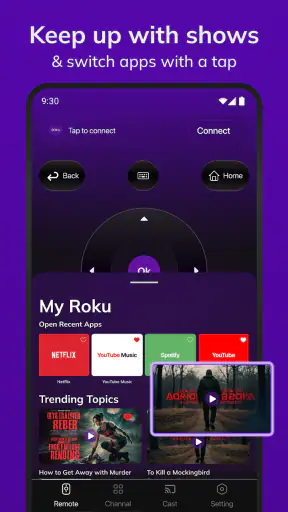
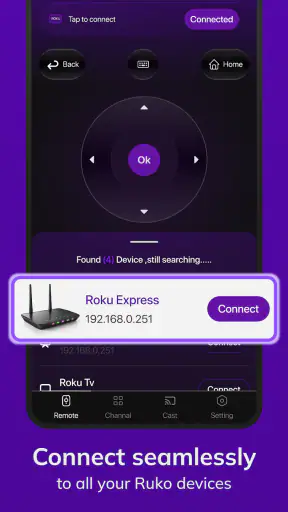
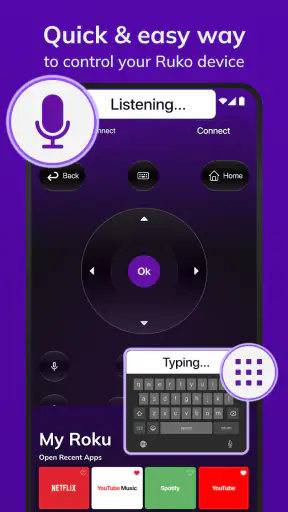
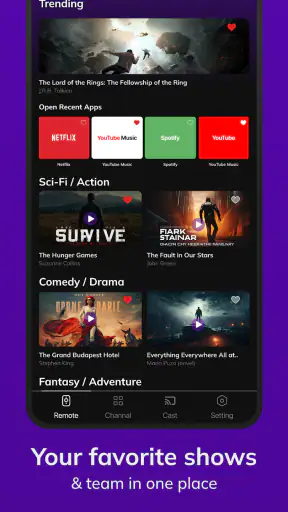
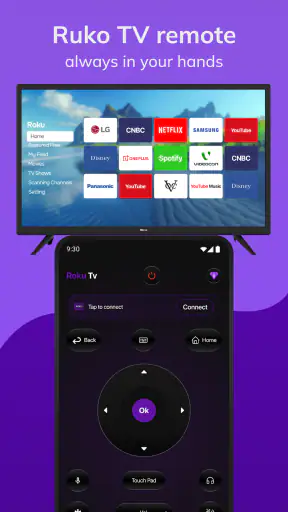
I used Roku Tv Remote Control as a practical replacement for a physical Roku remote, paying particular attention to how easy it is to read, navigate, and use in different everyday situations. It is a free tools app from Attractive Apps Valley, and its purpose is refreshingly narrow: control a Roku TV from a phone instead of searching between sofa cushions for the original remote. That focus makes it potentially useful, although it also means the quality of the experience depends heavily on how well your phone, television, and home network cooperate.
The app has reached over a million installs, which suggests that this type of replacement remote solves a common problem. Its average rating is 3.8, so I would not approach it expecting a flawless substitute for every Roku setup. I see it more as a convenient backup and a helpful option for people who already prefer using a phone, rather than an automatic improvement over a working physical controller.
How the remote feels to read and navigate
A focused tool rather than a crowded media hub
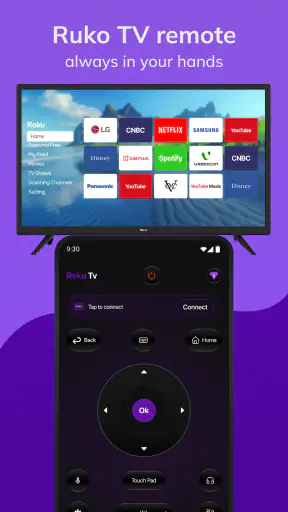
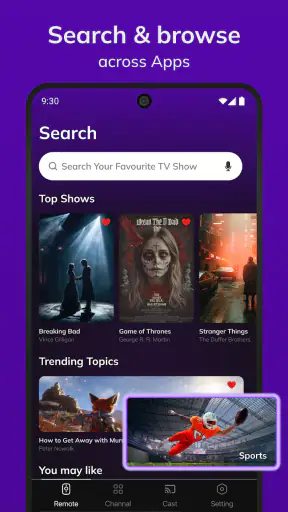
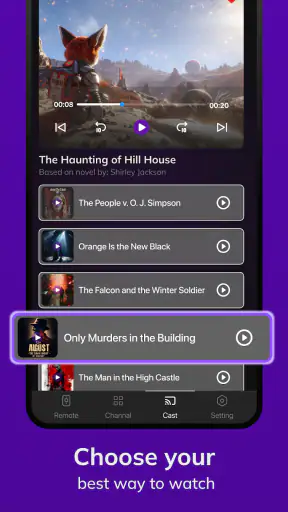
The strongest part of Roku Tv Remote Control is its straightforward purpose. You open a tool intended for television control, look for the Roku device, and use the phone as the input surface. That is easier to understand than an app that mixes remote control with streaming recommendations, account management, smart-home controls, and unrelated utilities.
For someone who is comfortable with a smartphone, the basic idea should be familiar. The phone screen gives you a larger, brighter interface than a small physical remote, and the controls are not hidden behind a row of tiny buttons. This can be particularly helpful when the original remote has faded labels or when the room is too dark to distinguish buttons easily.
Still, a phone screen is not automatically more readable for everyone. A physical remote gives tactile separation: I can feel the edge of a button without looking down. On a glass screen, I need to keep my eyes on the display to confirm where I am touching. That trade-off matters for people with low vision, limited visual attention, or simply the habit of watching television without looking at the controller.
Getting connected without unnecessary confusion
The store summary promises a connection process designed to happen quickly, but a quick connection should not be confused with a guaranteed one. In a normal home setup, the phone and Roku TV need to be discoverable to each other through the local network. If the television is on a separate guest network, the phone has changed networks, or the TV is temporarily offline, the app may not behave like a remote immediately.
My practical advice is to test the app while the physical remote is still available. Turn on the Roku TV, confirm that the phone is using the same home network, and try the connection before you actually need it. This small preparation avoids the frustrating situation where the original remote is missing and the phone app cannot find the television because of a network setting.
That workflow is also more inclusive. A person who relies on the app because handling a small remote is difficult should not have to troubleshoot the connection during an urgent moment. Setting it up in advance gives them a dependable routine and makes it easier for a family member or support person to help if needed.
Readable controls depend on the phone
The app benefits from being displayed on a phone rather than a tiny remote, but the final readability depends on the phone’s screen size, brightness, text scaling, and contrast settings. Someone with reduced vision may find a large phone easier to use, while another person may prefer a compact device that is lighter to hold. The app cannot remove those physical differences.
I would also keep the phone’s display awake while watching if the app allows normal system behavior to do so, because repeatedly unlocking a phone adds friction. A longer screen timeout can help during a film, but it uses more battery and may not suit every situation. These are small choices, yet they make a noticeable difference when the remote is being used for a long evening rather than a single volume adjustment.
Navigation for people who dislike small targets
Touch controls can be convenient, but they require accurate taps. Users with tremors, reduced dexterity, hand fatigue, or difficulty making isolated finger movements may find a phone remote less comfortable than a physical controller with raised buttons. The larger screen may improve visibility without improving motor precision.
I would hold the phone with both hands when navigating frequently, or rest it on a stable surface near the seating position. That reduces the need to grip and aim at the same time. It also lowers the chance of dropping the phone while reaching for a control. For a person who has difficulty with repeated tapping, the app is best used for occasional commands rather than constant channel or menu navigation.
What the rating tells me about expectations
The app’s 3.8 average from around two thousand ratings places it in the “useful for many, imperfect for some” category. I would read that as a reason to keep expectations realistic. A remote app can be convenient when it connects and responds properly, but it is more dependent on network conditions, phone state, and screen interaction than a dedicated controller.
That distinction is important for people choosing an assistive workaround. If the physical remote is uncomfortable because its labels are too small, this app may make the controls easier to see. If the main difficulty is pressing buttons accurately or locating the phone, switching to a touchscreen may not solve the real problem.
Using it across different abilities and situations
Low vision and changing lighting
A phone can be easier to position than a television remote. I can bring it closer to my face, adjust the screen brightness, and use the phone’s own display settings to make the interface more comfortable. In a bright room, that may be preferable to a dark remote with low-contrast markings. At night, however, an overly bright screen can be distracting and may cause glare.
The most useful approach is to prepare the phone before starting playback. Increase brightness only as much as needed, enable the phone’s preferred display accessibility settings, and place the device where it can be reached without searching. If a user has difficulty distinguishing controls, memorizing one simple routine—open the remote, connect to the known TV, then use the main navigation controls—can be less tiring than exploring the screen each time.
There is a sensory trade-off as well. A phone may produce visual feedback that a physical remote does not, but the user may still lack tactile confirmation that a command was registered. Someone who depends on touch rather than sight should test whether the app’s response feels predictable enough for their needs. If not, the original remote or a purpose-built accessible controller may remain the better choice.
Motor needs and one-handed use
One-handed use is possible in principle with a phone, but comfort depends on the device’s weight and the user’s reach. Repeatedly stretching a thumb across a large display can cause fatigue, especially when the phone is held away from the body. I found that placing the phone on a table and using one finger is less demanding than holding it continuously, though that only works when the seating arrangement allows the device to stay within reach.
For users with limited movement, the key question is not simply whether the app replaces the remote. It is whether the phone can be positioned in a reliable place and activated without excessive effort. A stand, a nearby side table, or a consistent storage spot can turn the app from an occasional rescue tool into a practical daily controller. Those accessories are not part of the app itself, but they influence whether the experience is genuinely usable.
People who experience accidental touches should be cautious. Touchscreens can respond to unintended contact, particularly when the phone is being lifted or passed from one person to another. I would lock the phone or leave the app when it is not needed, rather than keeping the control surface active in a pocket or on a crowded table.
Hearing differences and visual confirmation
A remote app can be useful for viewers who do not rely on television sounds to confirm every action, because the interaction happens visually on the phone. That does not mean it automatically provides every form of feedback a person might need. The important test is whether the user can tell from the screen that a tap has been accepted and whether the TV has changed state.
For someone who watches with captions or keeps the television volume low, a phone-based controller can fit naturally into the viewing routine. It avoids depending on an audible beep from a physical remote. On the other hand, if the user has difficulty seeing small changes on the phone or the television, visual control alone may not be enough. The app should be judged alongside the person’s complete setup, not in isolation.
Older adults and shared household routines
Older family members may appreciate having a remote on a familiar device, but the transition from physical buttons to touch controls can go either way. A person who already uses a smartphone for calls and messages may learn the app quickly. Someone who depends on the shape and position of physical buttons may find the change confusing, even if the screen appears larger.
I recommend introducing it gradually. First use it for power or volume, then add directional navigation, and only later rely on it for more involved menu movement. Keep the phone in the same place and avoid changing the setup unnecessarily. A consistent routine matters more than a clever feature when the goal is independent television use.
In a shared home, another issue is device selection. If several Roku TVs are present, the user needs to know which one the app is controlling before making changes. A simple habit—checking the selected television while sitting in the intended room—can prevent the awkward experience of changing playback somewhere else in the house.
A realistic evening scenario
Imagine that the physical remote has disappeared just before a family movie. The television is already connected to the home network, the phone is on that same network, and the app has been tested previously. In that situation, Roku Tv Remote Control can be a sensible backup: open it, select the television, adjust the volume, and navigate without interrupting the search for the missing controller.
Now change the circumstances. The phone is nearly out of battery, the television is offline, and the user has difficulty tapping small areas accurately. The app becomes much less helpful. It may still be worth having installed, but it cannot replace a charged device, a stable connection, or a control method that suits the user’s hands and vision.
This is why I see it as part of a broader access plan rather than the only remote in the house. Keep the physical controller in a known location, charge the phone regularly, and test the app after major network changes. Those habits address the practical barriers that an app download alone cannot fix.
Privacy-minded and cost-conscious decisions
The app is free to download, which makes trying it relatively low-risk for someone who wants to see whether a phone-based remote fits their routine. It includes in-app purchases ranging from $8.99 to $39.99 per item, so I would review any purchase screen carefully before confirming anything. A free starting point is useful, but users should not assume that every possible convenience is included without checking the interface.
For a household that only needs an emergency replacement, spending money inside a remote app may not be worthwhile. A working physical remote, a manufacturer-supported option, or another established control method could be a better long-term choice depending on the situation. The app makes most sense when the phone itself offers a meaningful advantage, such as easier visibility, availability, or reduced dependence on a small controller.
Where it compares well with usual alternatives
The usual alternative is the original Roku remote. That option wins on tactile feedback, immediate availability when paired correctly, and independence from the phone’s battery and screen. It is usually the better choice for rapid blind navigation, frequent button presses, and users who dislike touchscreens.
A phone remote wins on discoverability and flexibility of the device already in your hand. If the physical remote is lost, its labels are hard to read, or several people already know how to use smartphones, the app can be more approachable. It is also easier to bring close to the user’s face than a television across the room.
Another alternative is a general universal remote. That may be preferable for someone who wants physical buttons and control over several types of equipment. The trade-off is setup complexity and the need to learn another controller. Roku Tv Remote Control is more focused: it is attractive when the main need is controlling a Roku TV from a phone, not managing an entire entertainment system.
For households that need reliable access regardless of network problems, a dedicated remote remains the safer primary option. For households where the remote regularly goes missing or the user benefits from a brighter, larger control surface, this app earns a place as a backup or occasional replacement.
Remaining barriers I would consider first
The biggest barrier is connection dependency. A user may understand the controls perfectly and still be unable to use them if the phone and television cannot communicate. Network isolation, a changed Wi-Fi connection, or an offline TV can turn a simple task into troubleshooting. This is especially important for people who live alone or who cannot easily ask someone else to repair the setup.
The second barrier is the lack of physical feedback inherent in a touchscreen remote. Users with low vision may gain a larger illuminated interface but lose the ability to locate controls by touch. Users with motor difficulties may gain adjustable positioning but face accidental taps. There is no universal winner; the right choice depends on which barrier is more significant for the individual.
A third barrier is the phone itself. If notifications interrupt the screen, the battery is low, the device is locked, or another person needs to use the phone, television control becomes less convenient. A spare phone could solve some of these problems, but that adds cost and maintenance. I would not recommend buying another device solely for this app unless the accessibility benefit is clear and sustained.
The app runs on Android 7.0 and later, which covers many older Android phones and may help users avoid replacing a perfectly serviceable device. Its current version is 7.4. Because the app is relatively new, having an older compatible phone does not guarantee that every network or device combination will feel equally smooth, so testing remains more valuable than relying on the operating-system requirement alone.
Who should use it and who should skip it
I would recommend trying it if you own a Roku TV, regularly misplace the physical remote, prefer a phone’s brighter display, or need to bring the controls closer for reading. It is also a reasonable backup for a guest room, a temporary living arrangement, or a household where several people already understand smartphone navigation.
I would be more hesitant to recommend it as the only controller for someone who needs tactile buttons, has difficulty maintaining a phone’s charge, or cannot troubleshoot a network connection independently. It is also not the best fit for a person who wants one physical remote for a Roku TV, sound system, and other equipment. A universal controller may serve that broader purpose better.
The Everyone content rating makes it suitable for a general household audience, but suitability in the practical sense still depends on the user’s abilities. Age rating is not the same as accessibility. A child, older adult, or person with a disability may each need a different phone position, display setup, and teaching routine to use the tool comfortably.
My inclusive verdict
Roku Tv Remote Control is most valuable when the phone solves a specific access problem that a small physical remote does not. In my experience, its appeal is not that it magically improves every Roku setup. Its appeal is that a familiar, bright, always-near device can become a usable television controller when the original remote is lost, difficult to read, or inconvenient to handle.
I like the focused approach and the low barrier to trying it, but I would keep a physical remote available until the connection has been tested repeatedly in the actual room where the TV is used. I would also check whether the touchscreen suits the user’s motor and sensory needs before treating it as a full replacement.
For readers comparing Roku TV remote apps, the deciding question is simple: is your main problem finding buttons, or feeling them? If visibility, availability, and phone familiarity matter most, this tool is worth exploring. If tactile certainty, offline reliability, or multi-device control matters more, another option will probably serve you better. That balanced role—a convenient backup with meaningful accessibility potential but real setup limits—is where I think this app performs best.
Attractive Apps Valley has made a practical tool rather than an all-purpose entertainment companion. I would install it before losing the remote, test it calmly, and keep it as part of a backup routine. Used that way, Roku Tv Remote Control can make everyday viewing easier without asking the user to depend on it beyond what the phone and network can reliably provide.


